Cheap Tricks, Real Gains: Testing $60 Upgrades on a Five-Year-Old Desktop
The upgrade aisle is full of promises. A faster SSD! More memory! Better cooling! But on a five-year-old desktop, not every $60 bill buys a noticeable improvement. To test the claim, I used a 2021-era machine that still represents a lot of US households: a six-core CPU, 16GB of DDR4, a SATA SSD, integrated Wi-Fi, and a case that had seen better cable management. The goal was simple: spend about $60 per upgrade, measure the everyday difference, and separate the real wins from the placebo purchases.
The Test Bench
The machine handled browser tabs, Slack, Spotify, a 1080p game or two, and occasional photo exports. It was not broken. It was just tired. Boot times were fine, but app switching felt sticky. Game load screens dragged. The fans ramped up during video calls. Those are exactly the complaints that make people think they need a whole new PC when a targeted part might do the job.
I tested each upgrade in isolation where possible, then lived with the combined result for a week. No synthetic benchmark screenshots, no “up to” claims. Just the stuff people actually notice.
Upgrade 1: Storage — The Biggest Everyday Win
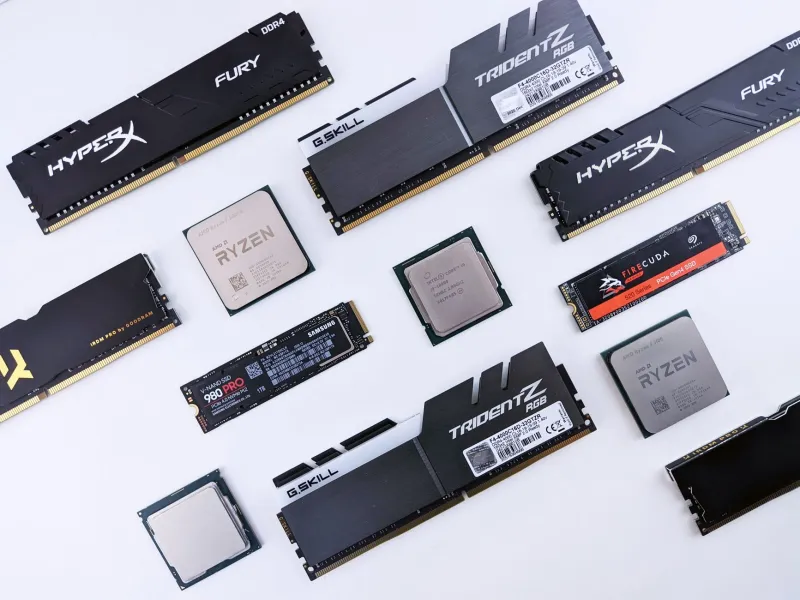
If the old desktop is still booting from a hard drive, a $50–$60 1TB SATA SSD is the closest thing to a magic trick. Boot times collapse, updates install faster, and the whole machine stops feeling like it is thinking through molasses. If you already have a SATA SSD, moving to an NVMe drive is a smaller win in daily use. Games load a little quicker and large file transfers improve, but the difference is not night-and-day for web browsing or office work.
My test machine already had SATA storage, so the NVMe swap was a modest improvement rather than a revelation. The real lesson: storage is still the first place to look, but only if you are upgrading from a hard drive or a nearly full, aging SSD. Check your motherboard for an open M.2 slot before buying.
Upgrade 2: Memory — Worth It If You Are Actually Running Out
Going from 16GB to 32GB of DDR4 cost about $55 on the used and budget-new market. In normal browsing, I could not tell the difference. With 30 tabs, a video call, and a photo editor open, the extra headroom showed up as fewer stalls and less disk swapping. If you keep one app open at a time, save your money. If your machine regularly sits at 80% memory use, the upgrade is a practical fix.
One warning: match your existing memory where possible, and do not pay extra for speeds your motherboard cannot use. A $60 DDR4 kit is not an investment in future performance. It is a comfort upgrade for a specific workload.
Upgrade 3: Cooling — Quiet Can Feel Faster
A $35 tower air cooler and a $15 tube of thermal paste did not raise my frame rates. What they did was keep the CPU from throttling during long video exports and make the machine noticeably quieter. That matters. A PC that stays calm under load feels more expensive than one that sounds like a leaf blower. If your current cooler is stock, dusty, or noisy, this is a satisfying $50. If temperatures are already fine, it is cosmetic.
Upgrade 4: Connectivity and Small Stuff
A $40 Wi-Fi 6 PCIe card was a genuine quality-of-life upgrade because the old adapter was the weak link in a house with a modern router. Video calls stopped stuttering in the back room. A $25 USB hub cleaned up the desk but did not make anything faster. A new mouse and keyboard can make a five-year-old desktop feel new to your hands, even if the CPU never notices.
What Wasn’t Worth It
RGB lighting, sleeved cable kits, and “optimizer” software did nothing for performance. Faster RAM than the platform officially supported was a waste of time. Extra case fans helped temperatures slightly but added noise. And a $60 “gaming” network card was pointless when the motherboard’s built-in Ethernet was already fine. The pattern is clear: spend on the bottleneck, not on the aesthetic.
The $60 Rule
A $60 upgrade is worth it when it removes a specific annoyance: slow boots, memory swapping, thermal throttling, or a weak Wi-Fi connection. It is wasted when it chases a number on a spec sheet. On a five-year-old desktop in 2026, storage and memory are the safest bets, cooling is the quiet luxury, and connectivity is situational. Spend $60 on the right part and the machine feels new again. Spend it on the wrong one and you have simply made an old PC look busier.